

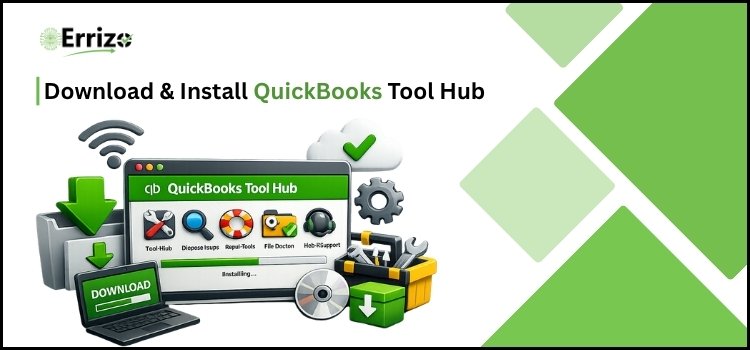
Wondering how you can download QuickBooks Tool Hub? Not sure about which one is the latest version of the tool hub? Trying to figure out how exactly you can use the tool hub to fix all the issues with the QuickBooks software?
If your answer is yes to all the above questions, then you have landed at the right place.
Every QuickBooks user can relate to this situation—you’re in the middle of a task, a deadline looming over your shoulder, and suddenly an unexpected error appears on your PC screen. Time is the most valuable asset for your business, and QuickBooks errors steal it like a thief. Ultimately, manually dealing with an unexpected error in the QuickBooks software usually takes around 2–3 hours.
From scratching the head to performing hit-and-trial methods, situations like these can be frustrating and time-consuming. That’s where the role and importance of the QuickBooks Tool Hub come into the lives of QuickBooks users like a knight in shining armor.
In this guide, you will get answers to your questions related to the QuickBooks Tool Hub, i.e., how to download the tool, what the latest version is, and how to use it. Therefore, if you want to save your precious time from dealing with the expected and head-rotating QuickBooks error, this guide is something that you cannot miss at any chance. Remember, errors with the software can occur anytime – hence, you should prepare yourself with the necessary tools and right knowledge to deal with the errors effectively.
QuickBooks Tool Hub: A Quick Overview
Think of QuickBooks Tool Hub as the toolbox where you keep all the essential tools and a repair kit for your car. Just like a skilled mechanic carries all the required tools in one single box, exactly the same way QuickBooks Tool Hub works for its users.
It’s a one-stop solution for fixing all the errors with the QuickBooks software. From common installation errors to complex technical difficulties, QuickBooks Tool Hub provides a range of tools to help users troubleshoot and resolve the errors that they face. As the name suggests, it’s a hub for multiple tools, which are designed and developed by Intuit and are completely free to use.
Inside the tool, there are different sections where you will find standout tools like the QuickBooks File Doctor tool, the QuickBooks Install Diagnostic Tool, and so on. These tools automatically work to detect and fix various issues related to the QuickBooks software and help users save time and effort in resolving the errors.
Read More:- QuickBooks Company File Login Password
System Requirements to Download & Install QuickBooks Tool Hub
Hold on!
Before you directly jump into downloading and installing the tool hub, it’s important to make sure that your system is ready to install it. QuickBooks Tool Hub needs the right system environment to ensure smooth functionality and to work at its full potential.
Here is the list of the system requirements that you should ensure that your system meets before downloading and installing the QuickBooks Tool Hub:
- RAM: Minimum 4 GB and 8 GB for better performance.
- Operating System: Windows 10 or Windows 11 (64-bit)
- Processor: Minimum 1 GHz and 2 GHz or higher for better performance.
- Hard Disk Space: Minimum 1 GB of free space.
- .NET Framework: Microsoft .NET Framework 4.8 or higher
- Administrative-level access to the system
- Display Resolution: 1024×768 or higher
Step-by-Step Guide to Download & Install Tool Hub
Once you have ensured that your PC is fulfilling all the criteria to download and install the tool hub, it’s time to start the downloading and installation process of the tool hub. Don’t worry – the process is quite simple and minimal. You can easily get it done by following the steps in the right sequence, even if you’re not tech-savvy.
So, here are the detailed step-by-step instructions that you can follow to download and install the QB tool hub like a professional:
(To avail yourself of the best user experience, use Windows 11 (64-bit).)
- First of all, exit the QuickBooks desktop, and click here to download the QuickBooks Tool Hub latest version.
- Save the file where you can easily find it. After downloading, if you can’t find it, then search for “QuickBooksToolHub.exe.”
- Now, open the downloaded file, accept the terms and conditions, and then adhere to the on-screen instructions to complete the installation process.
- Following that, you will be able to see the QuickBooks Tool Hub icon on your desktop screen.
- You can now double-click on the desktop icon to run it.
That’s how easy it is to download and install the QuickBooks Tool Hub, even for the very first time. Within 2 minutes, the QuickBooks software on your PC will get an armor of powerful tools and features to help you troubleshoot and resolve any issues you may encounter while using the program.
How to Use QB Tool Hub Like a Pro?
Using the QuickBooks tool hub is even simpler and easier than downloading it. You just need to be aware of the different sections and tools available in the tool hub. Always make sure to run the tool with administrative rights to ensure the best results.
1. Company File Issues
In this section, you’ll discover the Quick Fix My File and QuickBooks File Doctor tool that you can run to fix common data-related issues with the software.
2. Network Issues
This section includes QuickBooks Database Server Manager, which you can use to fix all the network-related issues, such as error H202. This tool is only accessible through the server computer.
3. Program Problems
Choose this tab if you’re facing issues while opening or closing the QuickBooks software. It includes
- Quick Fix My Program: For fixing background processes
- QuickBooks Program Diagnostic Tool: To fix Microsoft component-related issues
- QuickBooks Print and PDF Repair Tool: To fix print and email-related issues
4. Installation Issues
One-stop solution to fix all the installation-related issues with the QuickBooks software. It covers:
- QuickBooks Install Diagnostic Tool: For diagnosing and fixing errors that arise during installation.
- QuickBooks Clean Install Tool: To perform a fresh install, remove existing files and rename old folders.
5. Password Reset
This tab allows the user to reset the admin password with the help of the Automated Password Reset Tool.
6. Help & Support
Use this section if you want to avail yourself of the support or are looking for some knowledgeable resources related to tool hub issues.
7. Advanced Tools
Through this section, you will find shortcuts and quick access to important system tools such as the task manager, system configuration, file explorer, and command prompt. It’s highly recommended to explore this section, especially if you face any issues with the QB tool hub.
What To Do If QBToolHub.exe Has Been Blocked?
Sometimes, Windows security settings or antivirus software can mistakenly consider the QBToolHub.exe file as a potential threat and may block it from running. This issue doesn’t mean that you have downloaded the wrong file, nor that the file is damaged. This is a common issue, and there is no need to worry about it; it can be solved easily by performing just a few steps.
Let’s reveal the steps that you can follow to unblock the QuickBooksToolHub.exe file and continue with the installation process:
- Navigate to the folder where you have saved the QuickBooksToolHub.exe file and then right-click on it.
- Choose the Properties option, and then switch to the General tab settings.
- Thereon, look for the security section that shows “This file came from another computer and might be blocked to protect this computer.” Below this line, verify the “Unblock” checkbox option, and then click on the “Apply” and “OK” options.
- Afterwards, try to reinstall the tool hub to see if the error has been resolved or not.
- If the file is still blocked, temporarily disable the antivirus software and then try installing the tool hub again. You can re-enable the antivirus software after installing the tool hub.
And that’s how simply the roadblock is gone! The QuickBooksToolHub.exe file is now unblocked and ready to be installed without any further interruptions. Once the installation ends, simply double-click on the tool hub desktop icon to launch and use it. You’re now all good to start fixing all the QuickBooks errors and issues that arise on your path while managing your business finances.
Recent Post:- QuickBooks Error 6147
Conclusion
There you have it. Now you may know why the QuickBooks Tool Hub is one of the most valuable assets for QB users. In this guide, we have walked you through everything you may need to know about the tool hub. Right from the system requirements to how to download, install, and use it effectively. No catch – no fees or subscription is required to use the tool hub. It’s completely free and is specially designed to make life easier. Your business deserves nothing but the best, and the QuickBooks Tool Hub is the perfect tool to streamline the financial management processes. So, start using it right now!